Column
Place columns at the point you click.
Step by step
1. Pick the tool.
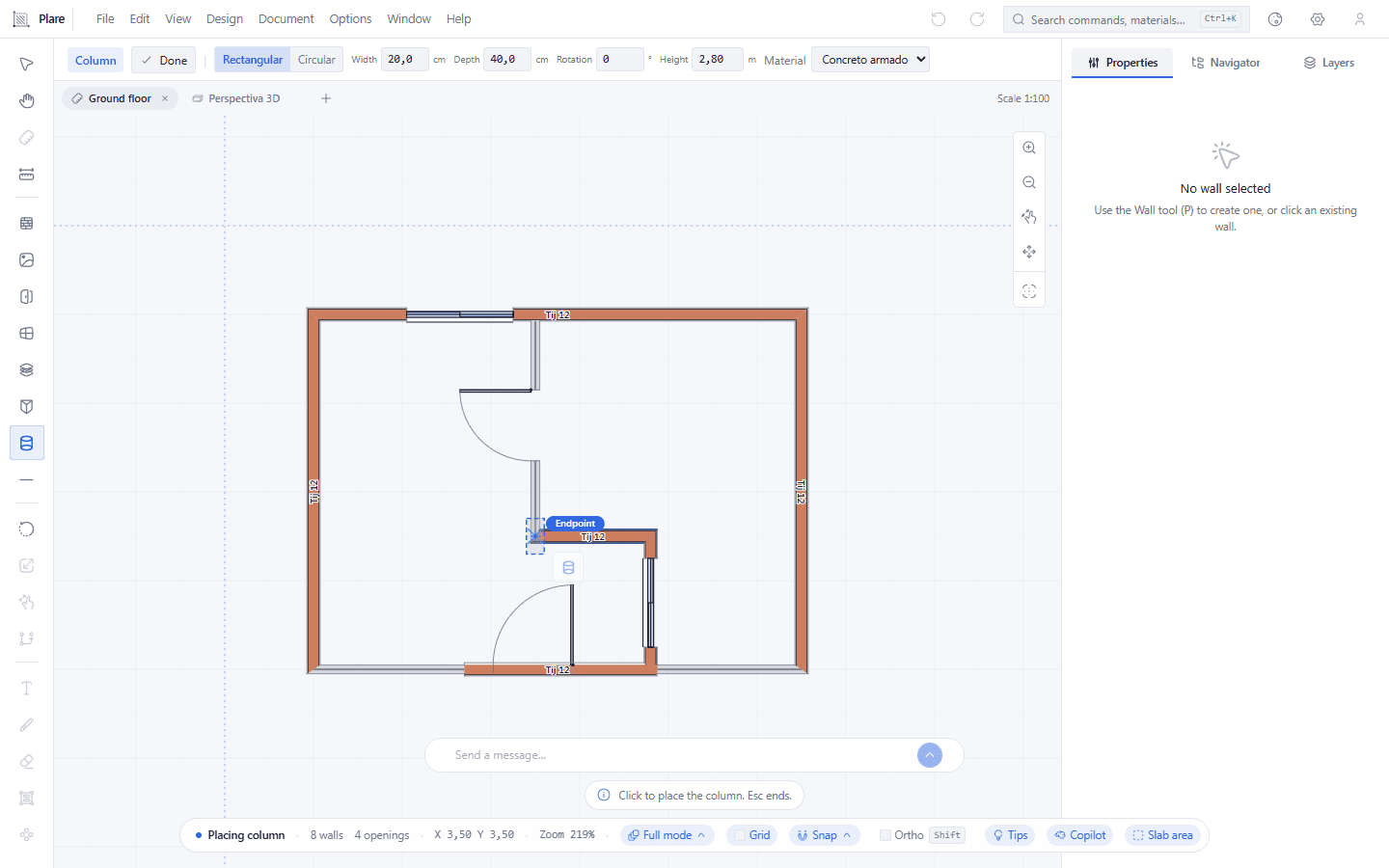
A rectangular ghost sits over the node — the default 20 × 40 cm section, narrower than a square — and the bar carries the shape (Rectangular/Circular) and the Material.
2. Click where the column goes.
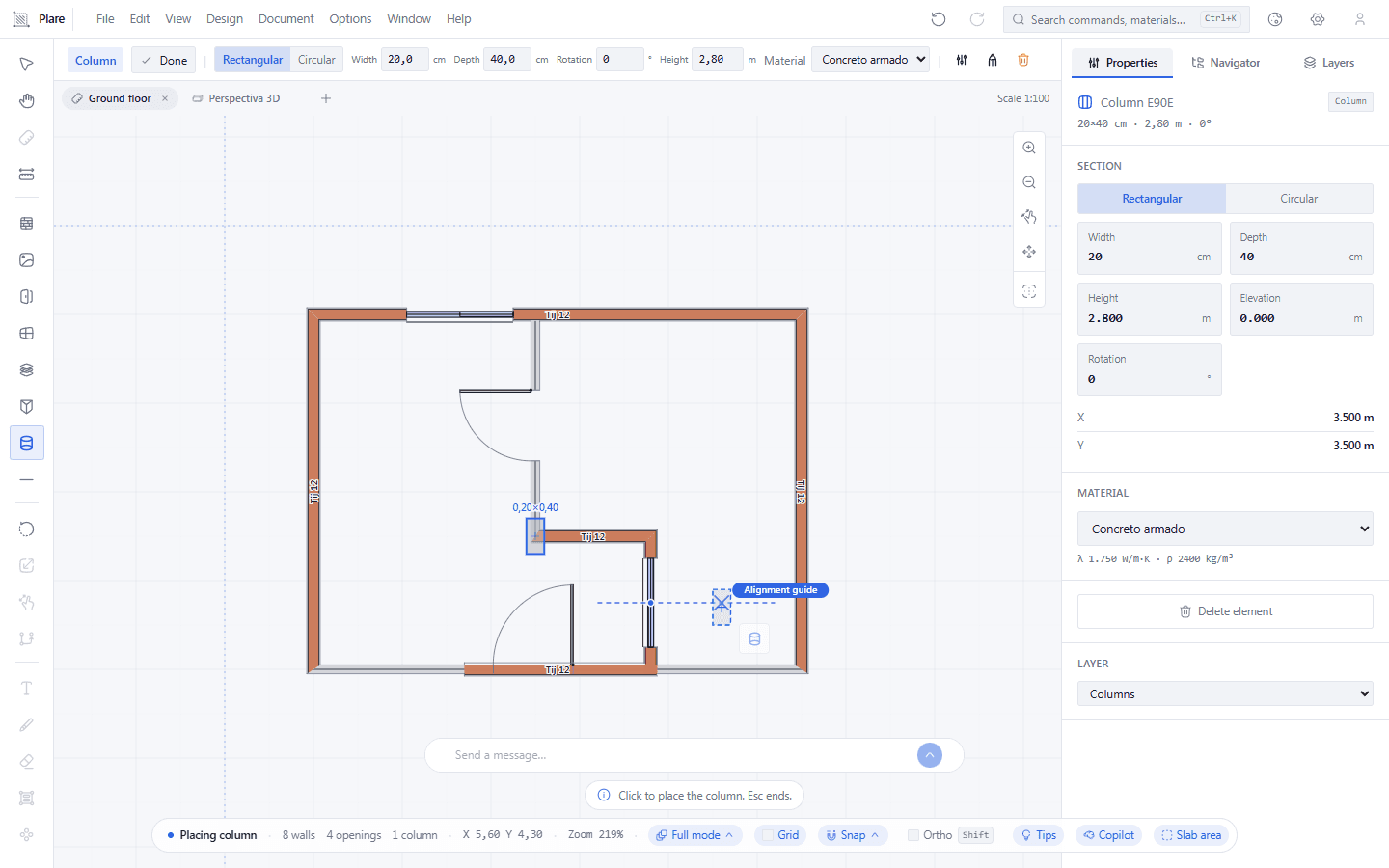
The column welds itself to the junction of three walls and the tool stays armed, ready for the next point without picking it again.
3. Pick the Circular shape to make the column round.
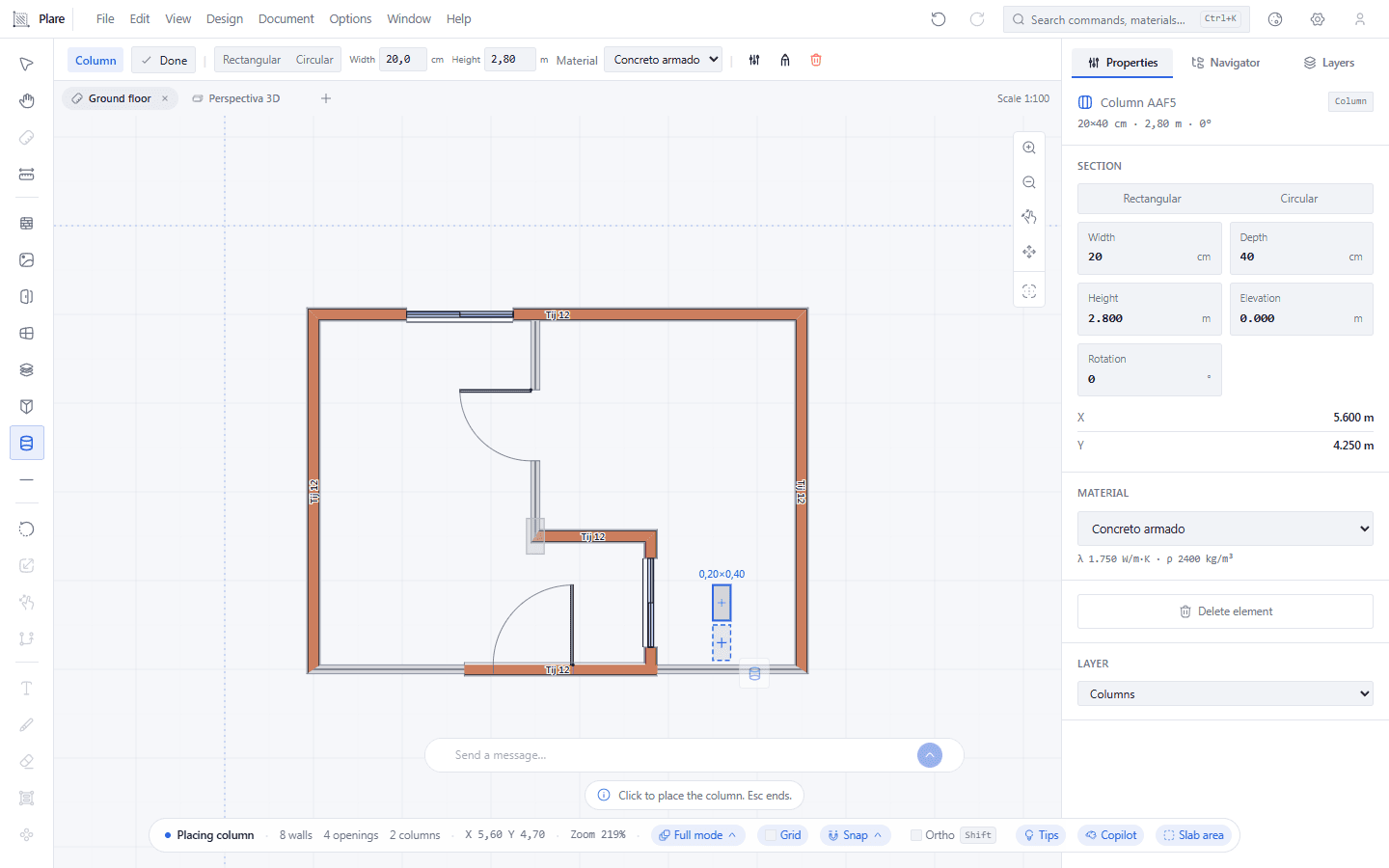
With Circular set, the second column is born round and the bar starts measuring its Diameter.
Worth knowing
- Default: rectangular section 20 × 40 cm, 2.80 m high, resting on the floor.
- The section can be circular — shape, rotation and height are edited in the Inspector.
- The last configuration you chose is remembered: the next column is born the same, no need to reconfigure.