Preferences
The four tabs of Preferences: shortcuts, general, screen and AI — and where each choice is stored.
Step by step
1. Open it with Ctrl+, and start on the Shortcuts tab.
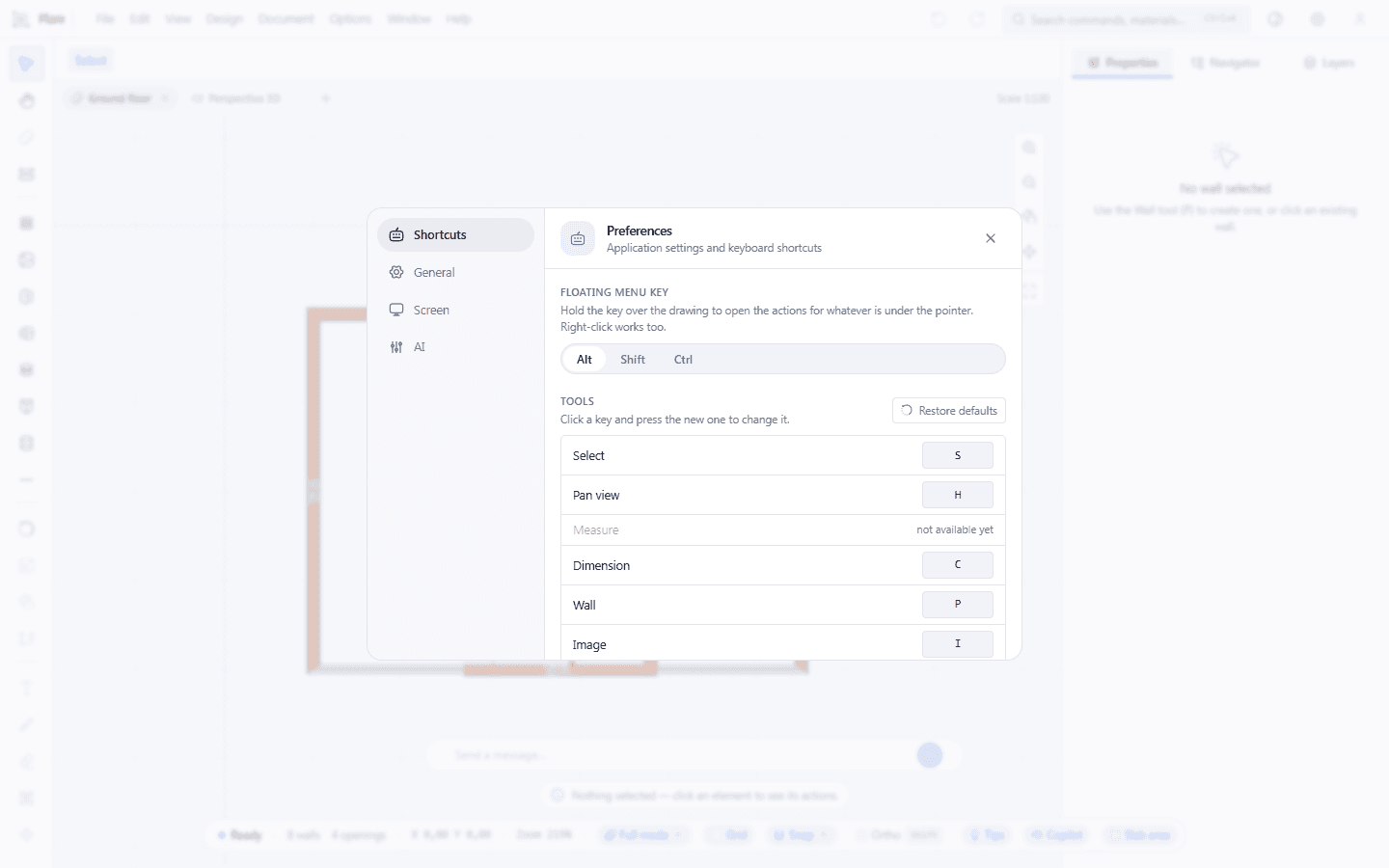
The Preferences dialog open on Shortcuts, with the four tabs to navigate on the left, the chooser for the key that makes the floating menu follow the cursor (Alt, Shift, Ctrl) and the table of tools with its key field beside each one. The tools that do nothing yet are in the list without a field — the key is what is missing, not a hidden one.
2. Choose the tab on the left: General is where the language lives.
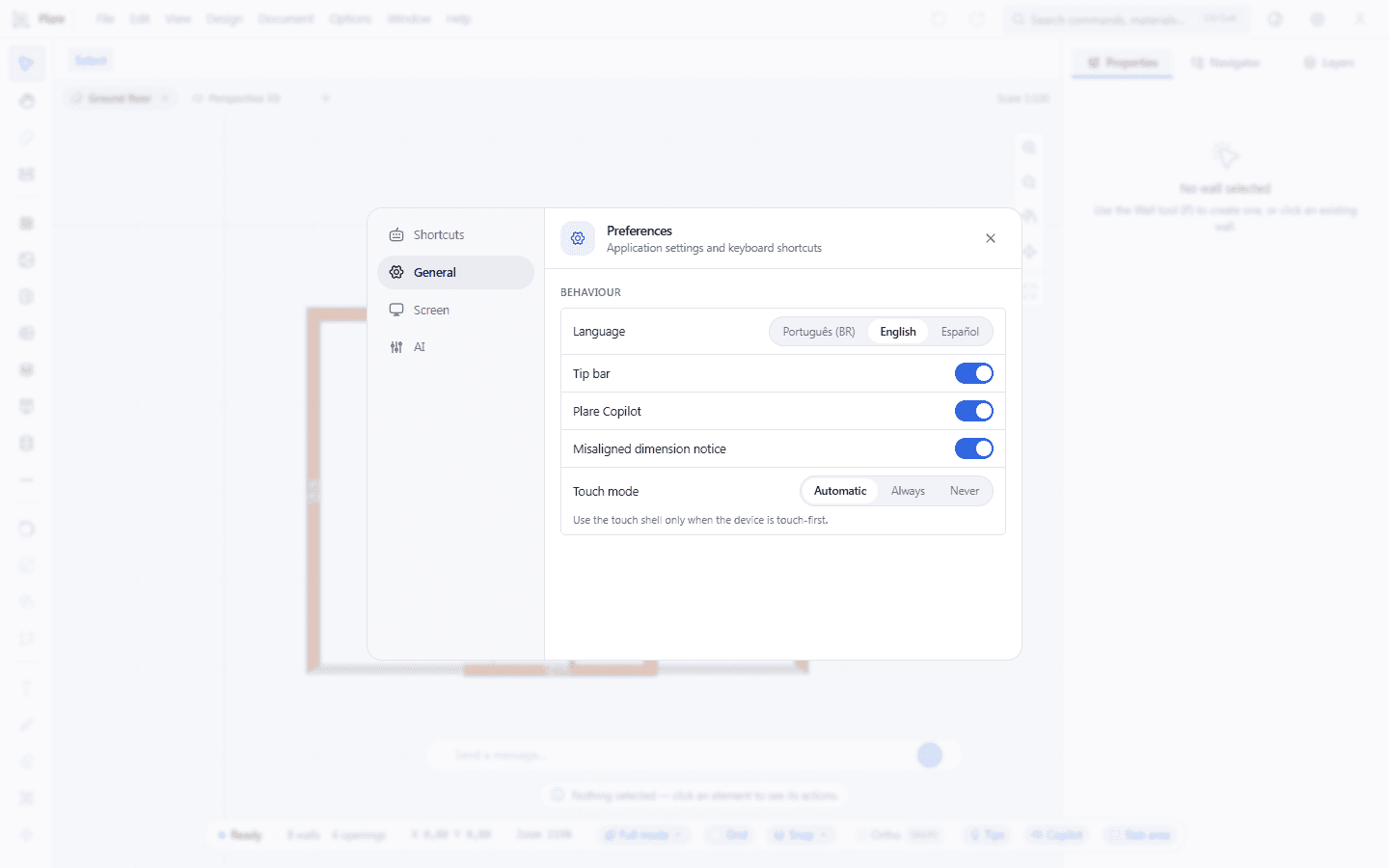
The General tab: the application's language, the tip bar, the switch that turns the Copilot off completely, the misaligned dimension notice, the status bar counts and the touch mode. Every field saves the instant it changes — there is no Apply and no OK in this window.
3. The Screen tab decides the theme, the grid and focus mode.
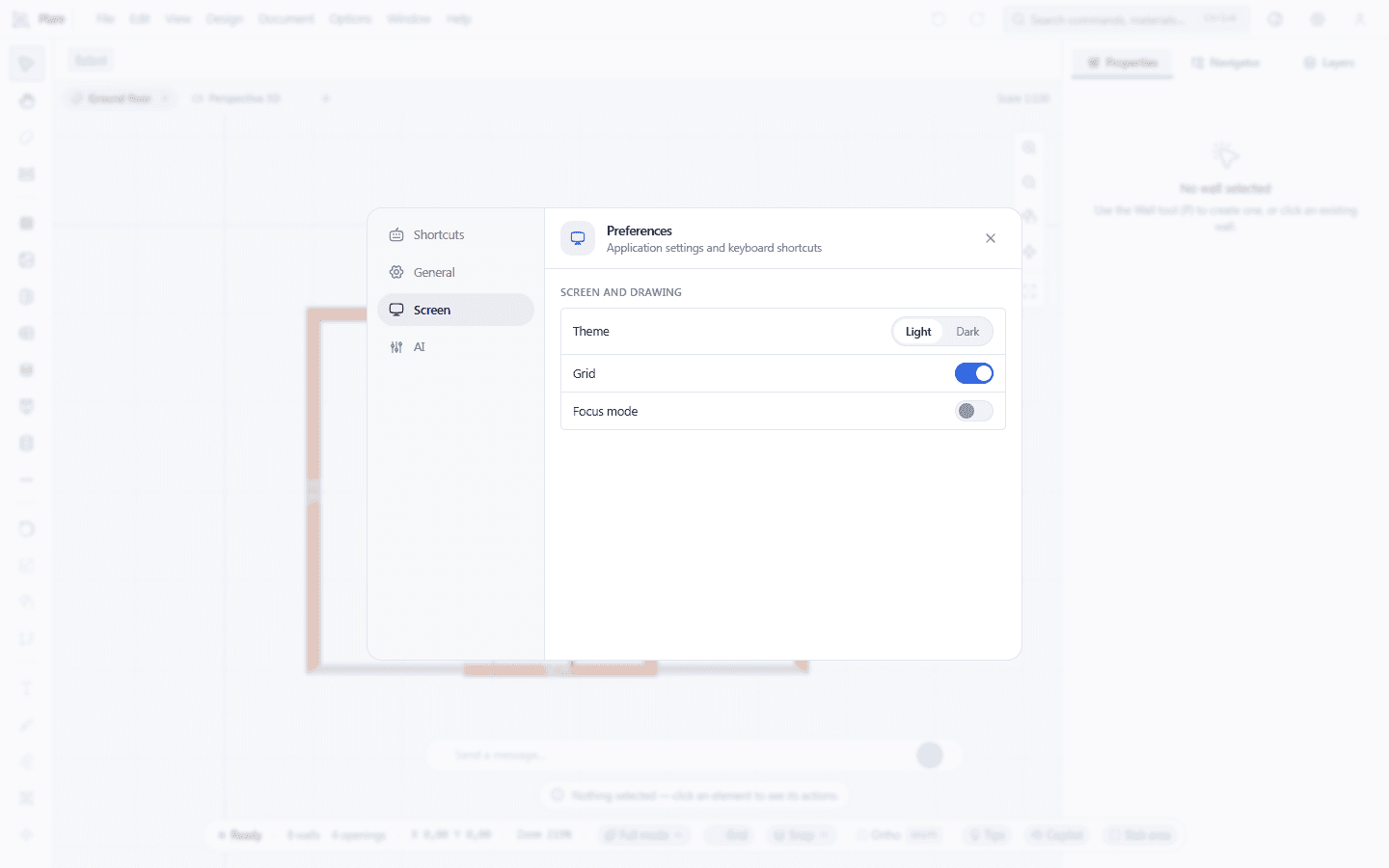
The Screen tab: the theme, the grid, the slab area and room area labels, and the focus mode that hides the panels so you draw in full screen. It is the same Ctrl+Shift+F the interface guide mentions, and that guide's last capture shows the result.
4. Open the AI tab and notice that nothing is filled in.
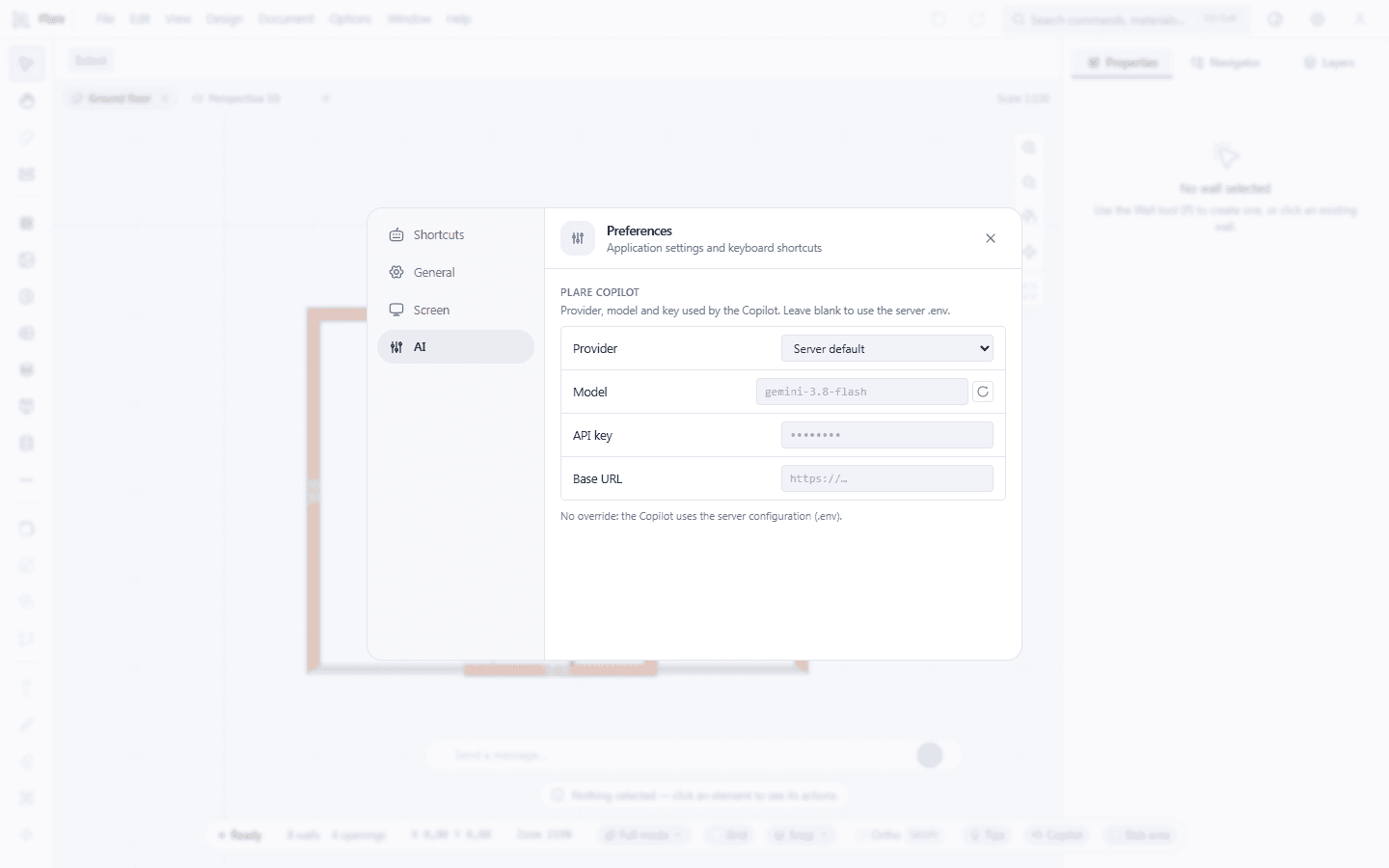
The AI tab with the Provider on the server default, and Model, API key and the base address left empty — they are overrides on top of the default, and none is set. The note underneath says what that means: without an override of your own, the Copilot uses the configuration in the server's .env file.
Worth knowing
- Closed the window and nothing happened? It is because there is nothing to confirm — the fields save as they change.
- A key conflict does not block anything: the row turns red with the name of the tool that already uses that key, and the last choice wins.
- Only live tools have a key field in the table. The nine still grey ones appear in the list without a field — there is no way to remap them.
- The shortcut is a single letter, with no modifier, and it has to be a–z or 0–9. A blank field means a tool with no key, not a hidden key.
- The AI tab is the only choice that does not travel with your account: provider, model and key stay in this browser.
- The language chosen here is the language of the application. The help you are reading is the language of the address — they are two separate choices.
- Touch mode on Automatic decides by the screen resolution and by the touch available; Always and Never force the result.
Related tools
Related guides
What is there, and what is not
Four tabs, and they are all of them: Shortcuts, General, Screen and AI.
There is no units tab, no scale tab, no default snap tab and no sheet tab — and there is no account tab either. The units are the construction's (metres), the scale lives in the sheet panel, the snaps have their own picker on the status bar, and the account is managed on the site. If you are looking for one of these, you are looking in the wrong place, and nothing is broken.
Shortcuts
Two things here, and the second is the one that gives work.
The menu key. The top menu can open with Alt, Shift or Control. It is the modifier the floating menu uses as well, and that is why it is a single one.
The tools table. Twenty-one rows, with the tool on the left and the key field on the right. Clicking the field and typing a letter remaps it; typing again clears it. A shortcut has to be one key, with no modifier, and from the a–z or 0–9 set.
The conflict is handled by warning and not by refusal: the row turns red and says which tool already has that key. Both remaps stay saved, the last one written is the one that counts, and a blank field is a tool with no key — not a hidden key.
The Restore defaults button returns the whole table to its factory key.
General
| Field | What it does |
|---|---|
| Language | Portuguese, English or Spanish, applied on the spot. |
| Tip bar | Turns the corner tips on and off. |
| Plare Copilot | Turns the dock off completely. Off, it does not exist in the interface — and the Copilot indicator on the status bar does not either. |
| Misaligned dimension notice | Asks for confirmation before dimensioning in a chain, when the segments have very different lengths. |
| Element counts on the status bar | Shows or hides the wall, opening and room counters on the status bar. |
| Touch mode | Automatic, Always or Never. |
The misaligned dimension notice is the only one of these fields that exists for a reason of the construction site: dimensioning in a chain is a quick gesture, and a measurement error in a delivered drawing costs more than an extra click.
Screen
Theme — Light or Dark. Grid — turns the background lines on and off; the grid ships turned off, but grid snap is on, which means the cursor jumps even when you do not see the lines. Slab area and Room area — the m² labels drawn over each slab and each room; an individual slab or room can still disagree with the choice in the properties panel. Focus mode — hides the panels to draw in full screen, and it is the same thing as Ctrl+Shift+F; in this mode the right panel gets the pin button, which does not exist outside it.
AI
What you choose here decides which model answers in the Copilot dock, and it is the only section of this dialog that talks to the outside world.
Provider — the server default, Google Gemini, Groq, DeepSeek, Mistral, Cerebras, OpenAI, NVIDIA NIM, OpenRouter, or a local service. Picking one pre-fills the API URL, which stays editable; any OpenAI-compatible endpoint also works by picking OpenAI and pointing the URL at it. Model — depends on the provider; the Fetch available models button pulls the live list from the endpoint and falls back to the curated list when it does not answer, and you can type a name yourself. API key — with the local provider, instead of a key you point at the address: http://localhost:1234/v1 for LM Studio, http://localhost:11434/v1 for Ollama.
Test connection asks the endpoint how many models exist and answers with the number, or says there was no answer. It is the first test to run when the dock answers empty. Clear deletes the key and goes back to the server default.
Where the key lives
In this browser, and only here. The other three tabs save in plare.settings and travel with your account to any computer; the AI configuration — provider, model and key — saves in plare.ai.config and is not synchronized. It is not forgetfulness: an API key on the server is an API key read by more people than you would want. The price is that a new computer starts without it, and that is why this guide says where it is.
The windows that are not Preferences
This dialog configures the program. Every element of the drawing has its own window — wall, door, window, slab — and they do not live here: see Settings windows.
The rule is simple to memorise: what changes your hand (keys, theme, language, AI) is in Preferences; what changes an object is in that object's window.