Pan view
Drag the viewport without touching the geometry.
Step by step
1. Choose Pan view or press H.
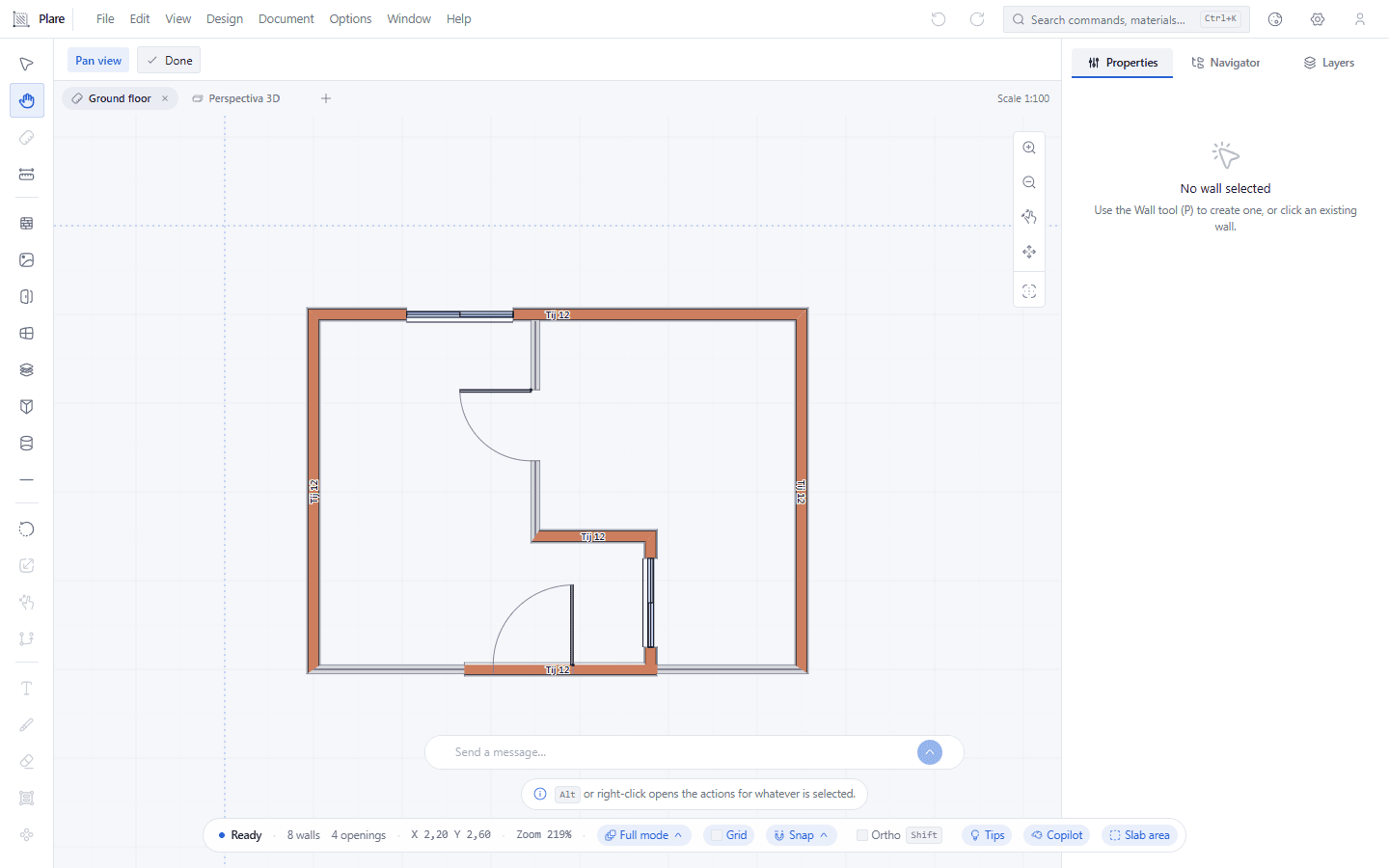
The bar under the menu now shows the tool and a Done button, and the cursor turns into a hand. Nothing in the plan changes: what moves is the window looking at it.
2. Click and drag to move the viewport.
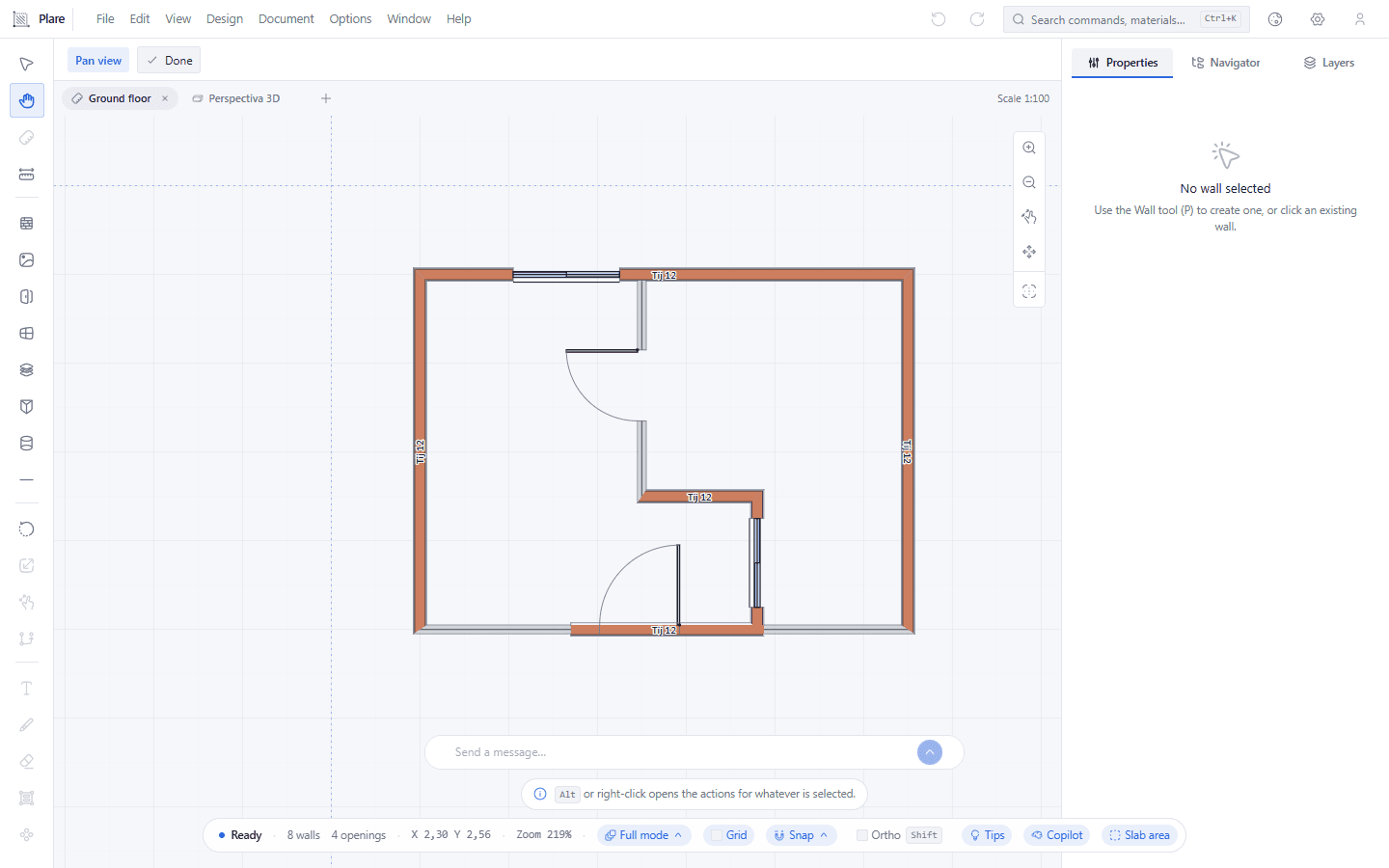
The bars around the canvas stay where they are; only the drawing travels. That is how you walk the plan without losing the tools that surround it.
3. Release, and carry on from where the view stopped.
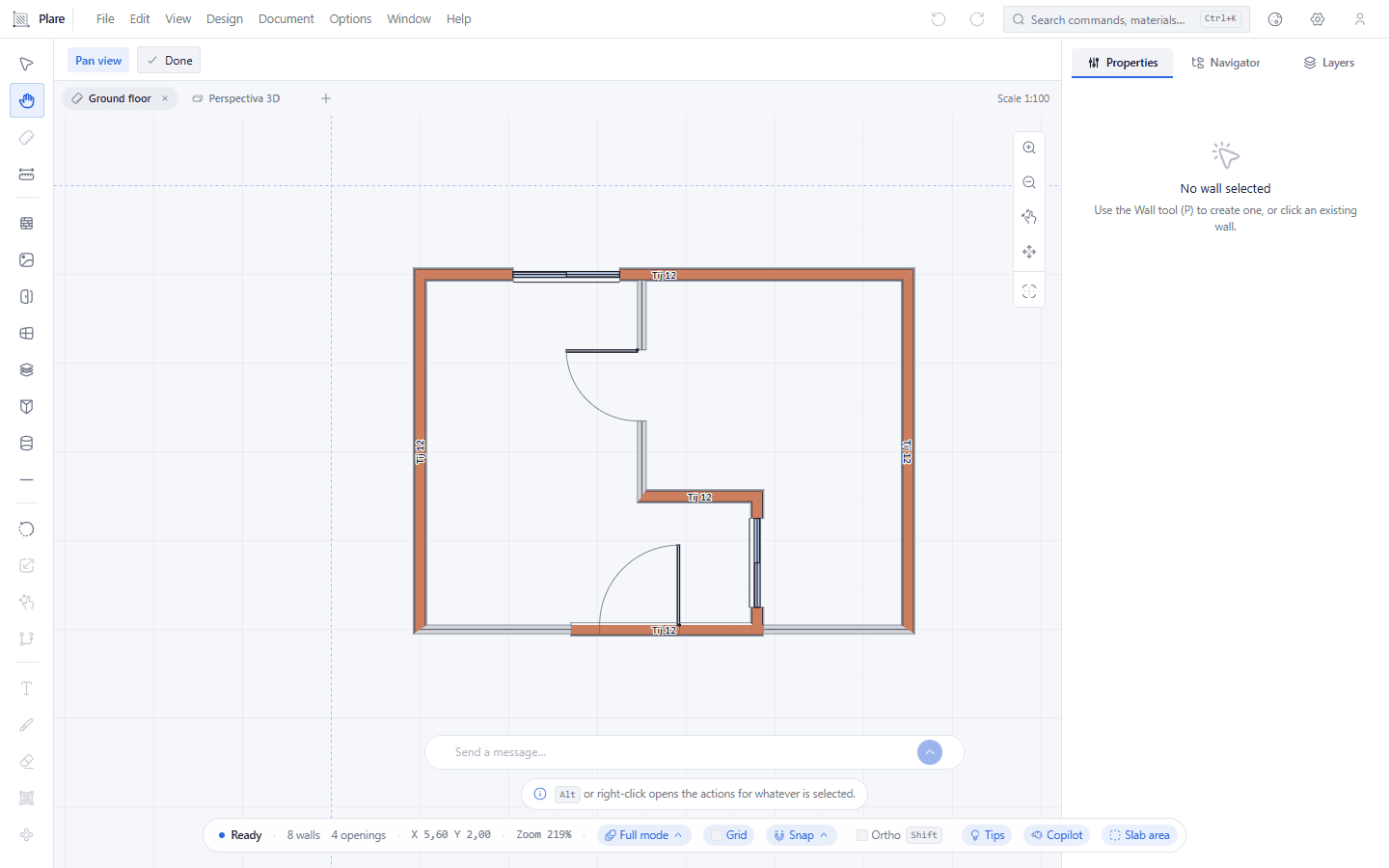
Done — or Esc — hands it back to Select, with the view exactly where you left it. The wheel zooms around the pointer, and works the same whatever tool is in hand.
Worth knowing
- The space bar also activates pan temporarily, while held down.
- Zoom centres on the pointer — zooming into a detail keeps that detail centred.
- There are no canvas bounds: you can move past the drawing without hitting an edge.