Plare Copilot
Ask in plain language for what you would draw by hand: the Copilot runs real commands in the project.
Step by step
1. Click the Copilot button on the status bar to open the dock.
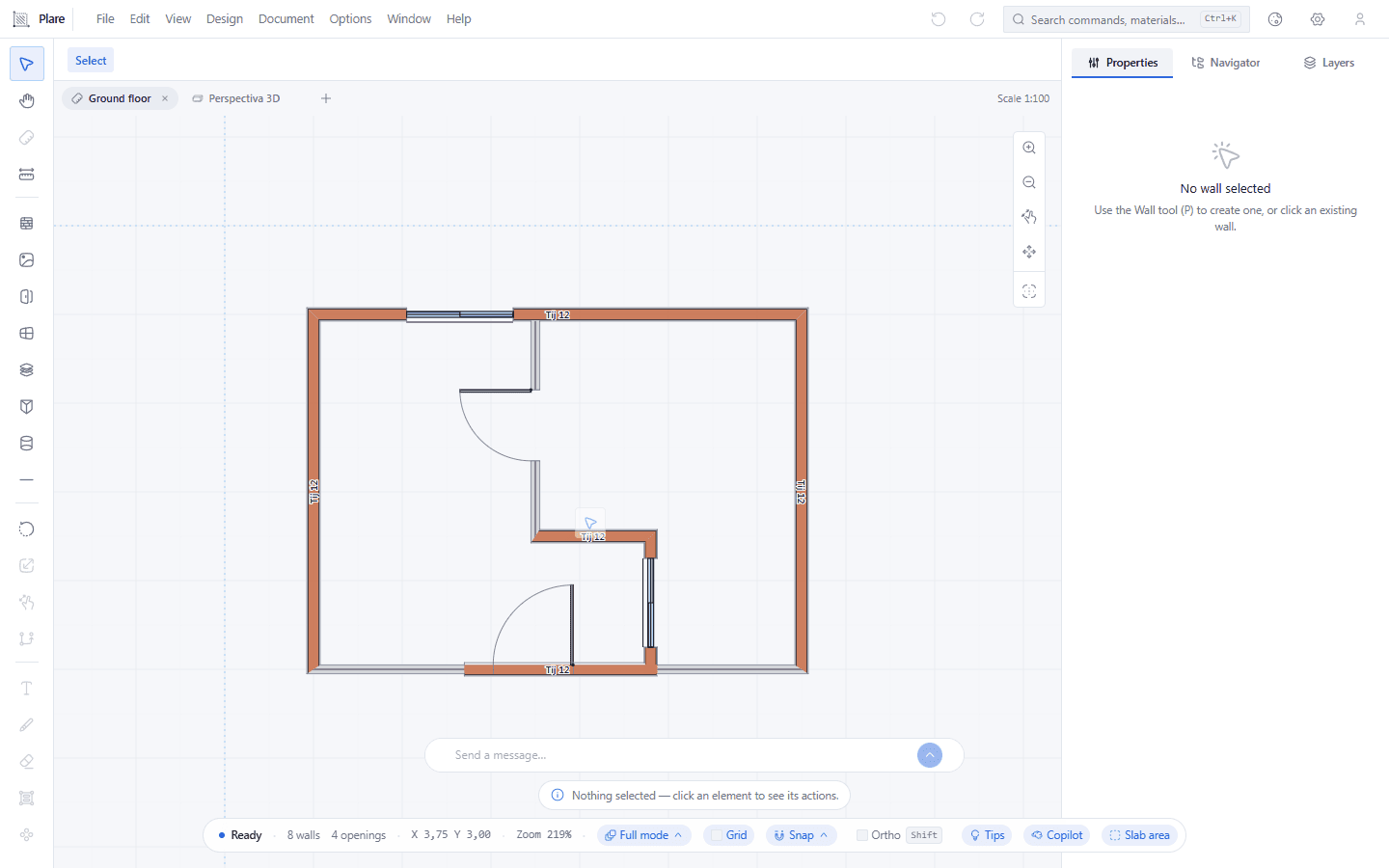
At the foot of the window the dock is collapsed, and at the right end of the status bar sits the button that turns it on. That button is the only way in — there is no keyboard shortcut for the dock.
2. Open the dock and see what it offers before you write anything.
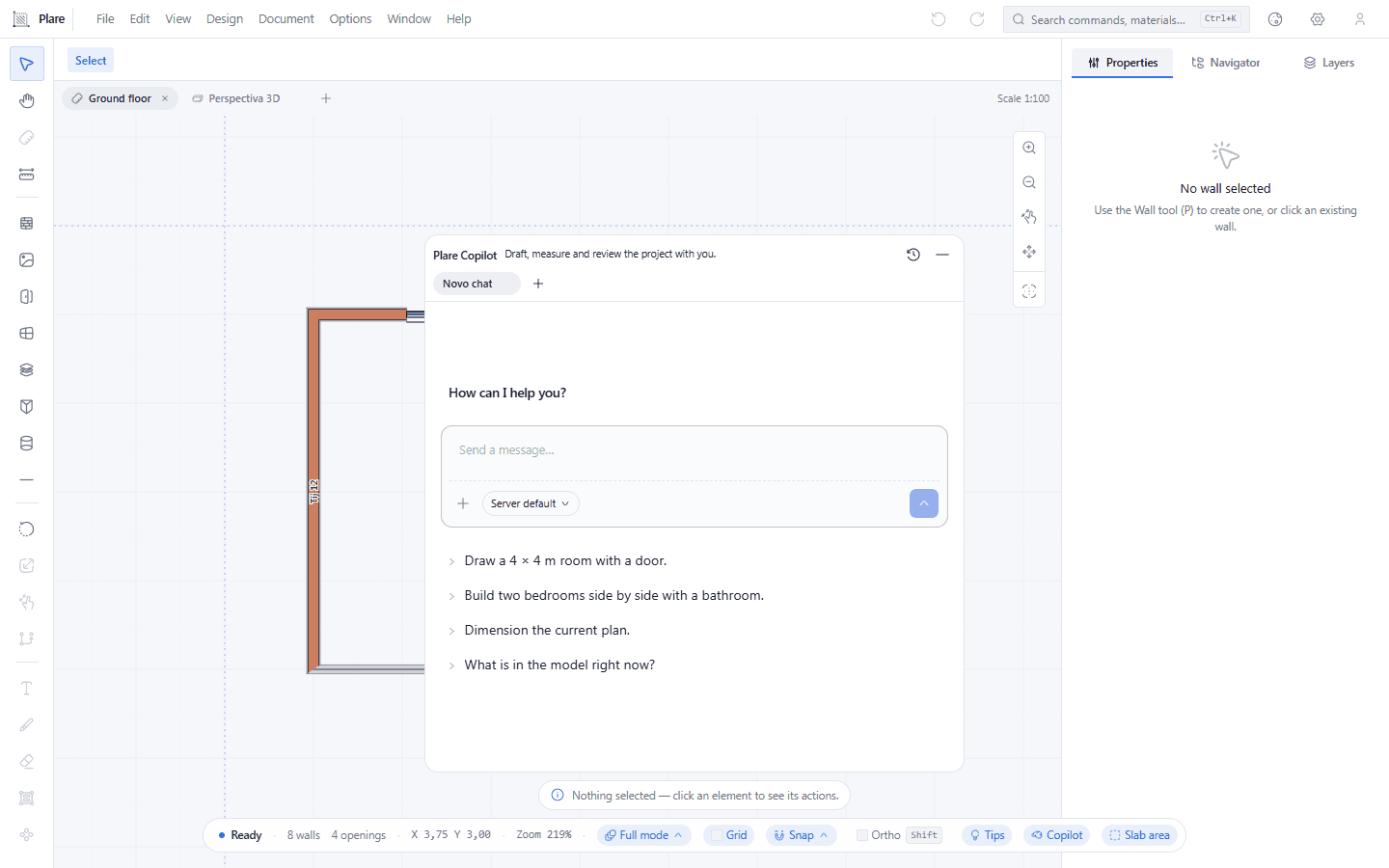
The dock expanded: the greeting line, the chip that names the model — the server default —, the message field and the four fixed suggestions. Nothing was typed or sent in any of these captures; the suggestions are buttons that send, so they stay unclicked.
3. Open the history to see the conversations kept on this computer.
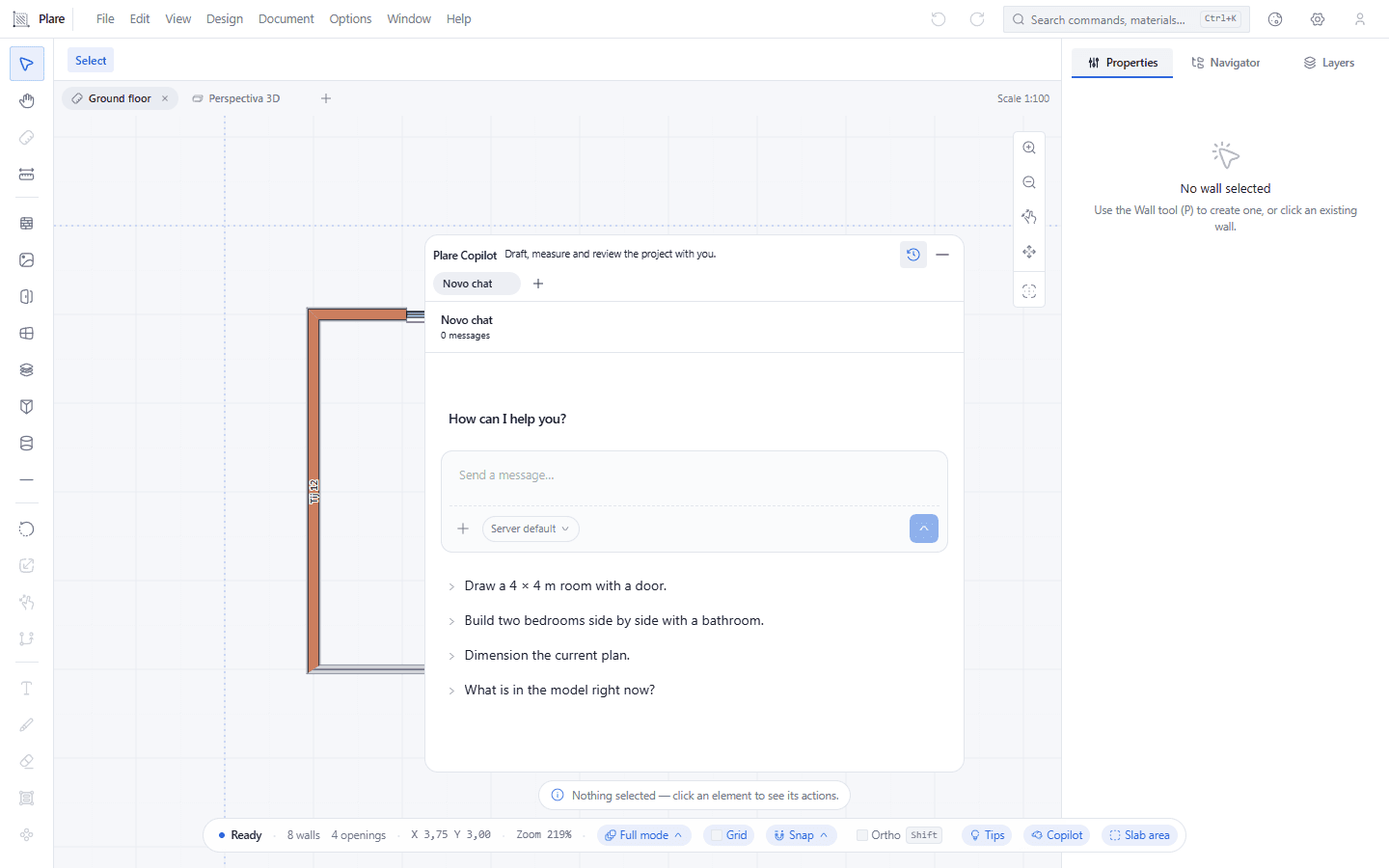
The history drawer open, listing the conversations saved on this computer. A fresh machine shows a single new chat with no messages in it: the chats do not travel with your account, and this is where you can see that.
4. Click the same button again to turn the Copilot off completely.
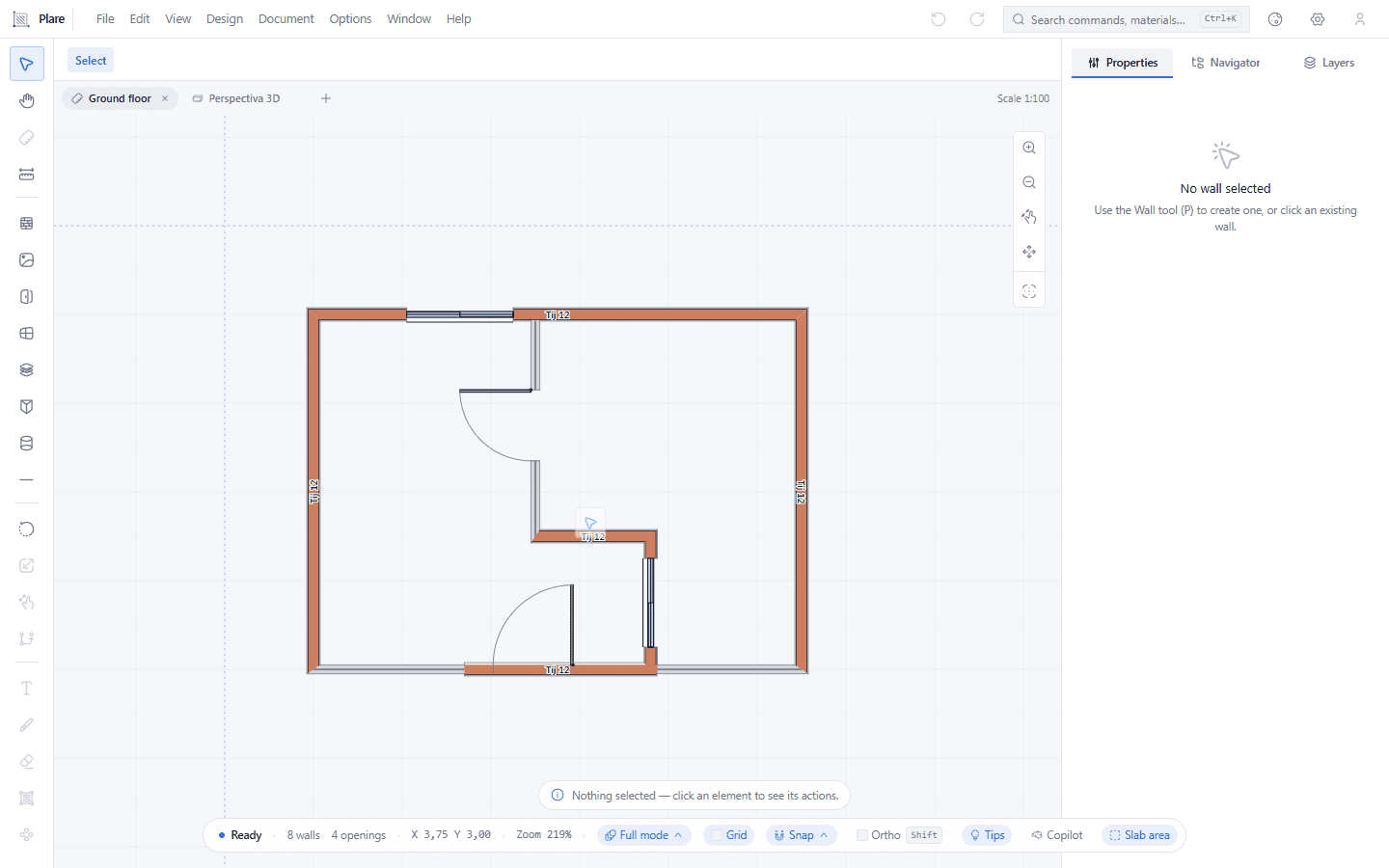
The dock has left the window, and the status bar's button reads as switched off. It is not folding the conversation away — the Copilot stops existing in the interface until you turn it back on.
Worth knowing
- The dock lives at the bottom of the screen and the conversation grows upward; the minimize button, or a click on the drawing, folds it away.
- The four suggestions that appear in an empty chat are fixed — they are not generated by the model. After the first answer, up to three others suggest commands that have not been used yet.
- The conversations stay on this computer, and they are global: switching project does not open a new chat nor hide the old ones.
- Without an API key of your own, the Copilot uses the server default model. You can switch to a provider and a model in Preferences, on the AI tab.
- The API key is never uploaded to your account — it stays in this browser only.
- You can turn the Copilot off completely with the same status bar button; it stops existing in the interface until you turn it back on.
Related tools
Related guides
What it is, in one sentence
The Copilot is a conversation that runs real commands. There is no "assistant mode" separate from the "drawing mode": what it does is exactly what you would do by clicking the toolbar, with the difference that it chains several commands into a single answer and shows each of them.
This matters for the way you write. Ask for an action with a measurement — "close the back bedroom with 15 cm walls", "put a 1.80 m window in the north wall, 90 cm from the corner" — instead of asking for a description. It does not draw from an image or from a poetic text; it draws from commands, and commands need numbers.
The commands it has
Nineteen, and that is the whole list — what is not here the Copilot does not do.
Creating and editing geometry
create_wall— raises a wall between two points, with thickness and height.add_opening— cuts a door or a window into a wall.add_slab— creates a slab from a polygon of at least three vertices.add_column,add_beam— column and beam.delete_wall— deletes walls. Destroying geometry asks for confirmation.set_wall_thickness— changes the thickness of an existing wall.align_axes— aligns the axes of the walls. Also asks for confirmation.
Dimensions and annotation
generate_dimensions— generates the drawing's dimensions in automatic mode.clear_dimensions— clears the generated dimensions (the automatic ones only).
Seeing and selecting
fit_view— fits the drawing to the screen.set_view,toggle_grid— change the point of view and turn the grid on or off.select_walls— selects walls by criteria, so that a following command acts on them.get_model_summary— reads the model: how many walls, which areas, which openings. It changes nothing.check_interferences— looks for overlaps and conflicts, with a cut of 50 occurrences in the result. It changes nothing either.
Planning and asking
plan_tasks— splits a big request into up to 12 tasks, each with a title of up to 120 characters, and shows the list while it runs.ask_user— stops the execution and returns up to three questions with up to six options each, for you to choose before it continues.explore— a read-only subagent that investigates the project in up to four turns and comes back with a summary, without touching anything.
What it shows while it works
An answer is not a block of text at the end. Every command executed opens a line of its own, and a pill at the top sums up the run: which command is running, which step you are on out of the total, how many actions have already happened, what was created and removed in the drawing, and how long it has been running.
The model's reasoning steps appear folded under "Thinking", and they open for reading. This is where you see when the Copilot misunderstood — before it draws, and not after.
When it asks a question, the execution stops and a card with the options appears: answer through it, or dismiss it. The exploration card works the same way.
Before deleting
Two commands are marked as high impact: deleting a wall and aligning axes. For those the Copilot runs a simulation first — it computes the result, shows what will change — and only applies it after you confirm. A "no" leaves the drawing exactly as it was.
This is not a general safety net: the rest of the commands apply directly. What serves as the net is the history — Ctrl+Z undoes what it did, one action at a time, and the dock has no "undo everything" button.
Models and providers
By default, the server chooses. In Preferences, on the AI tab, you can pin a provider and a model: Google Gemini, Groq, DeepSeek, Mistral, Cerebras, OpenAI, NVIDIA NIM, OpenRouter and a local service — LM Studio or Ollama, with the local addresses suggested by the interface itself. Any OpenAI-compatible endpoint works too: pick OpenAI and change the URL.
The "Test connection" button asks the endpoint how many models exist and answers with the number, or says there was no answer. It is the test to run before blaming the Copilot for an empty answer.
The key stays in localStorage in this browser and not synchronized with the account: another computer, another key. It is a deliberate choice, and it is also the reason it is worth using a provider of your own — the quota of the server default is shared and limited.
Where the conversations live
In the browser, all together, independent of the project that is open. A history lets you resume or delete a conversation, and there are tabs so you can have more than one open at the same time; an empty tab is discarded when you close it. The title is always the first message you wrote, cut at 40 characters.
What this means in practice: clearing the browsing data clears the chats, and a new computer starts with none. Mirroring the conversations to the account is the product's next step, and it has not happened yet.
What it still does not do
Because it is faster than finding out by hand:
- It does not see or generate images, and it does not read a PDF or a photo of a project.
- It does not open or save your files; it works on what is on the screen.
- It does not import or export DWG and IFC through the chat — that is still done from the menus.
- It has no editable system instructions: you cannot tell it "from now on always 12 cm".
- It does not work storey by storey on purpose: what it sees is the open view.
Writing well for it
Three habits solve most misunderstood requests:
Give numbers with a unit. "A 15 cm wall" works; "a thin wall" forces it to choose, and the choice is not yours.
Point with geometry, not with names. It has no labels: "the north wall of the back bedroom" is more reliable than "João's wall", and easier to check than coordinates.
Ask in stages when the answer is long. A request of twelve actions uses plan_tasks and appears as a list, but a request written badly in stages — "first close the perimeter, then cut the openings" — lets you correct the course between them, with the stop button.